
Team and roles
Invite colleagues to the cabinet instead of sharing your password. Each member signs in with their own email and sees only what their role allows.
Roles
| Role | Can do |
|---|---|
| Owner | Everything, including team management, withdrawals and ownership transfer. There is one owner. |
| Admin | Everything except transferring ownership. |
| Developer | API keys, webhooks, result page, checkout settings, documentation and test transactions. No withdrawals, no live transactions. |
| Accountant | Transactions and withdrawals. No API keys or settings. |
| Viewer | Read-only access to the dashboard, balance, transactions and withdrawal history. |
Invite a member
- Open Team in the menu on the left and click Invite member.
- Enter the email and choose a role.
- The person gets an email with a link, sets a password and joins your cabinet. Until then the member is shown as Invited.
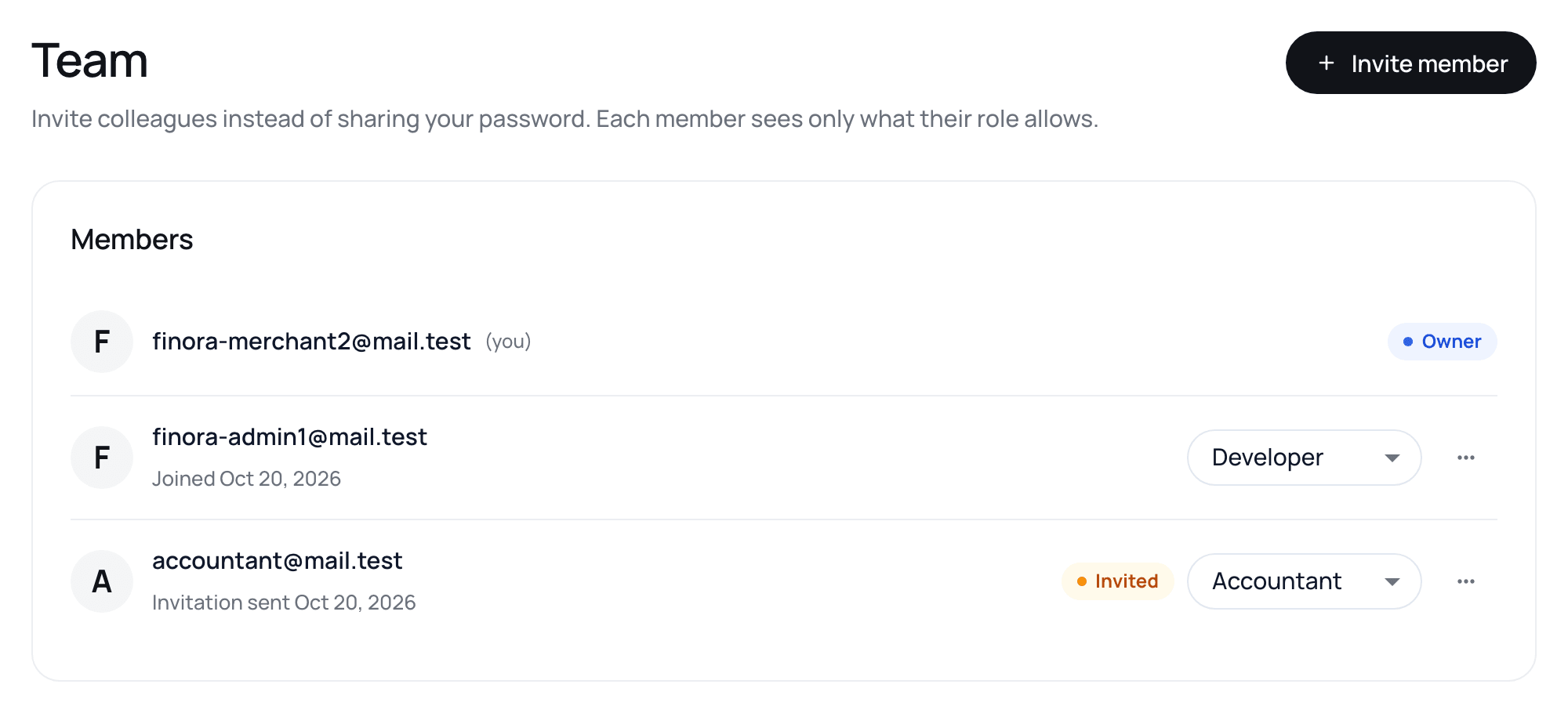
You can change a member's role in the list or remove the member (… → Remove from team, or Cancel invitation) at any time; removal takes effect immediately.
Custom roles
If the built-in roles don't fit, create your own in Team → Roles → New role and choose what it allows: transactions, live money, balance and withdrawals, withdrawing, integration, the go-live request and team management.
Transfer ownership
The owner can make another member the owner: Team → … → Make owner. The previous owner becomes an Admin.