
Checkout appearance
Customers trust a payment page that looks like the shop they came from. Give the hosted checkout your name, logo and colours — once for all payments, or differently for each payment.
Set your defaults
Open Integration → Checkout appearance, adjust the settings and click Save. The preview next to the form updates as you type. The defaults apply to every payment you create afterwards.
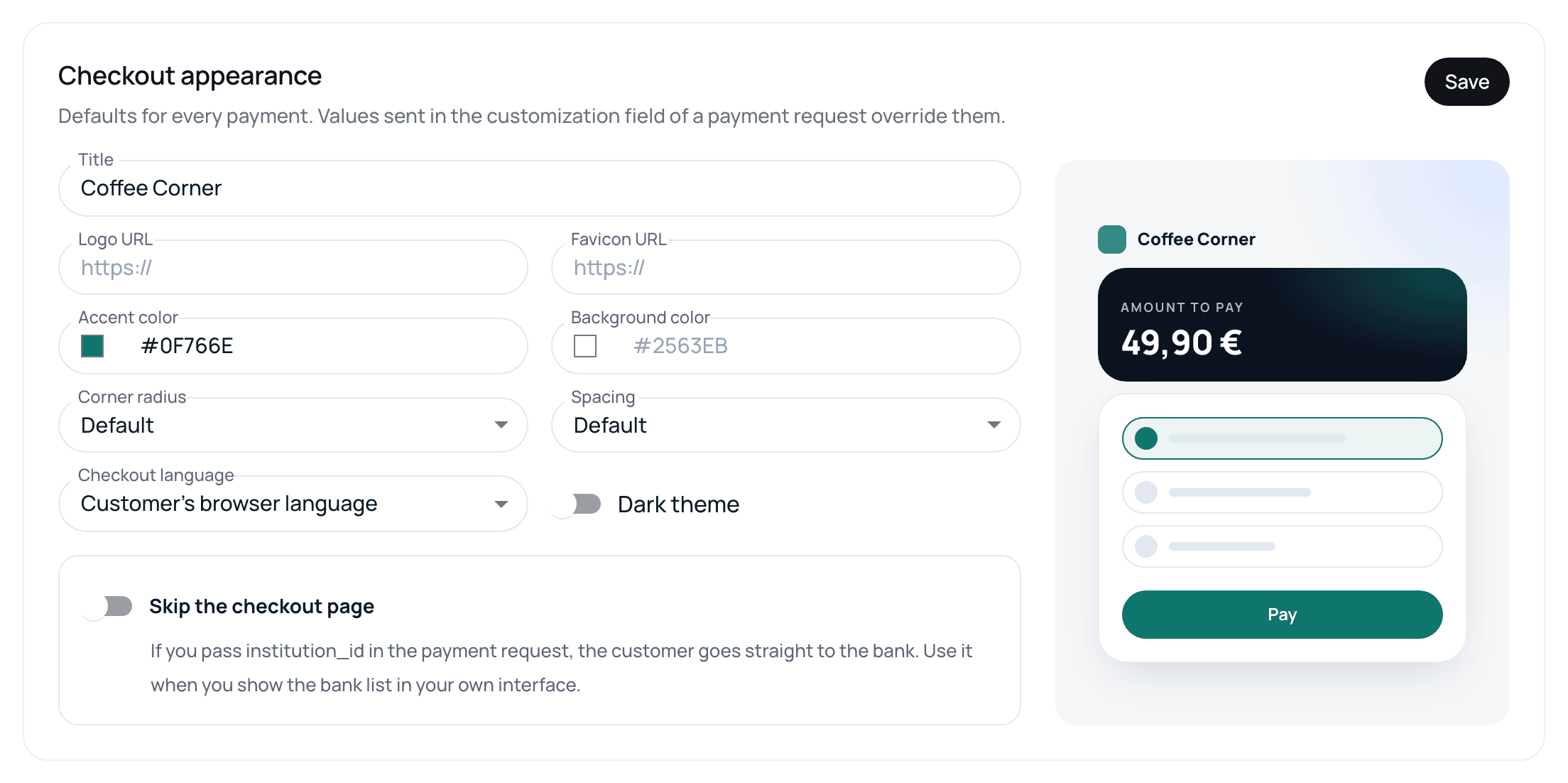
Change the look for one payment
Send ui_customization with the create payment request — useful when one account serves
several shops. Only the fields you send change; everything else comes from your defaults.
json
{
  "merchant_order_id": "order-4471",
  "payment_amount": 64,
  "payment_currency": "EUR",
  "ui_customization": {
    "title": "Northwind Books",
    "logoUrl": "https://example.com/northwind.svg",
    "primaryColor": "#B45309",
    "radius": "sm"
  }
}
Identity
| Field | Value |
|---|---|
title | Text at the top of the page, usually your shop name. |
logoUrl | Absolute HTTPS link to a PNG, SVG or JPG logo. |
logoHeight | Logo height in pixels, from 10 to 500. |
faviconUrl | Absolute HTTPS link to the icon shown in the browser tab. |
Colours
| Field | Value |
|---|---|
primaryColor | #RRGGBB — buttons and the selected bank. |
bgColor | #RRGGBB — page background. |
modalBgColor | #RRGGBB — background of the payment card. |
isDark | true for a dark page. |
Shape
| Field | Values |
|---|---|
spacing | sm, md or lg — how airy the layout is. |
radius | none, sm, md or lg — corners of buttons, fields and the card. |
Language
By default the checkout speaks the language of the customer's browser. To use one language for everyone, choose it in Integration → Checkout appearance → Checkout language.